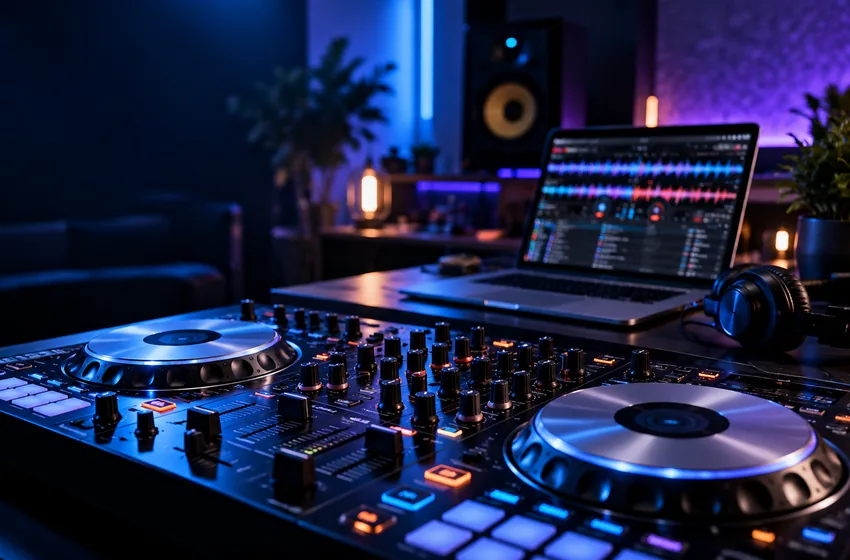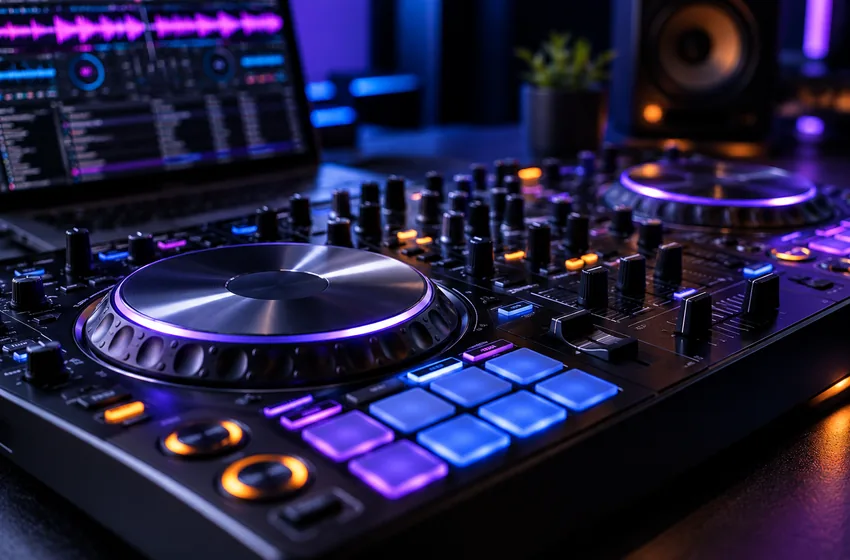
Intermittent audio faults demand a controlled test. Random setting changes often hide the real cause.
How can I reduce crackles and audio dropouts in VirtualDJ?
Reproduce the problem using the same tracks and devices, then check sound drivers, CPU or GPU load, USB connections and buffer size one change at a time. Validate the result through an extended rehearsal at realistic volume.
For device-specific settings, follow the source links below and check the current software manual.
Menus and licensing can change between VirtualDJ releases. Use these steps as a learning framework and verify device-specific instructions in the official documentation.
01. Reproduce the problem deliberately
Write down whether glitches happen during loading, stem processing, video playback or ordinary two-deck mixing. Run the same transition with the same files and hardware.
If the fault appears only when a feature is enabled, you have a useful clue. Do not assume an expensive computer is immune to driver conflicts or thermal throttling.
What to do
- Test two regular audio tracks first.
- Repeat with effects or stems added one at a time.
- Note whether the computer is charging or on battery.
Avoid troubleshooting for the first time during a paid performance.
02. Restore a known-good load
Close unnecessary programs, remove unneeded USB accessories and verify that your audio interface uses its intended driver. Consider a slightly larger audio buffer if glitches correlate with heavy processing.
Be careful with operating-system power policies and driver updates. Use reliable manufacturer guidance rather than blanket tuning scripts.
What to do
- Return effects and stems to a simple baseline.
- Recheck buffer and driver choices.
- Test a complete practice set under realistic load.
A larger buffer is not a cure for damaged cables or bad channel routing.
03. Establish a fallback
For live use, prepare an emergency music source and rehearse a controlled switch. A conservative setup is usually more valuable than one that barely survives the most demanding effect chain.
Document the final working combination so you can recognize when a future update changes its behavior.
What to do
- Save settings after stable rehearsal.
- Retain a backup playlist.
- Re-test after major updates or new hardware.
Check vendor and hardware documentation when a fault is device-specific.
Three practical checks
Use these observable checkpoints before relying on this workflow. These are editorial practice suggestions, not results of independent device testing.
| Check | What good looks like | If it does not work |
|---|---|---|
| Audio load | Replay the same two-track mix for several minutes without glitches | Disable extra processing and inspect the driver and buffer |
| Stems stress | Try the problematic stems transition without audible clicks | Reduce the simultaneous processing load; do not assume a faster PC always fixes drivers |
| Connection | Repeat with a stable power source and securely connected USB audio device | Replace suspect cables or ports and test again |
Frequently asked questions
Can a very small audio buffer cause crackles?
Yes. If the computer cannot complete audio processing in time, dropouts may occur even when average CPU use seems reasonable.
Why should I change only one setting per test?
A controlled change helps you identify the cause and avoids hiding it behind unrelated adjustments.
Sources and further reading
This guide offers independent practice advice. Product specifications and available controls should be checked against the software publisher's documentation.
Send corrections or suggestions to our editorial inbox.