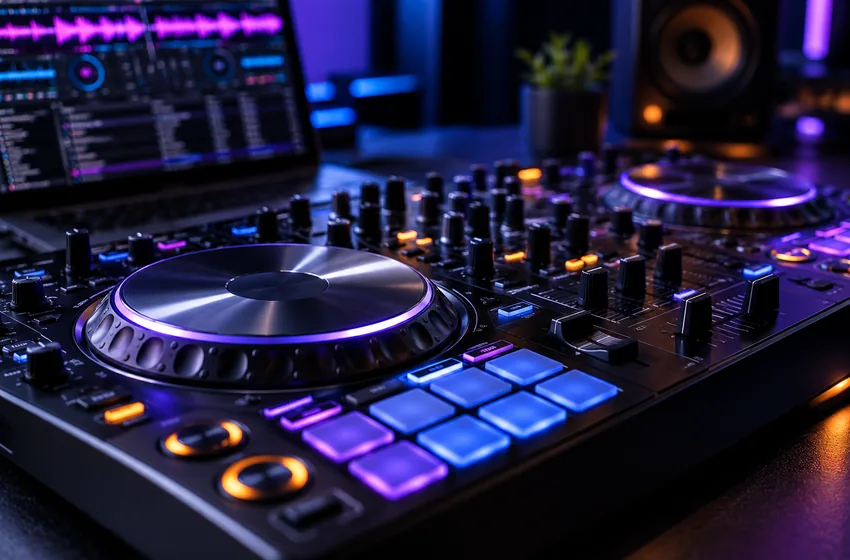
Very low latency feels responsive but gives the computer less time to process audio. Stable audio is the priority.
What does audio buffer size do in a VirtualDJ setup?
An audio buffer gives the computer time to process sound. Smaller buffers may feel more responsive but increase the risk of clicks and dropouts; use the lowest setting that stays stable with your actual controller, driver and effects.
For device-specific settings, follow the source links below and check the current software manual.
Menus and licensing can change between VirtualDJ releases. Use these steps as a learning framework and verify device-specific instructions in the official documentation.
01. Separate perceived delay from broken routing
Headphone lag can come from Bluetooth devices, USB-driver configurations or heavy processing. Silence, clipping and delay are different problems, so check them independently.
Start with the recommended driver configuration for your device and a conservative buffer. Change one variable at a time while listening to a familiar track.
What to do
- Identify which sound device handles master and cue.
- Prefer a stable wired signal path for critical monitoring.
- Write down the current buffer setting before changing it.
Do not make large live buffer changes while music is playing for an audience.
02. Find a workable balance
A smaller buffer may reduce delay but increase glitches or dropouts under load; a larger one usually makes processing safer at the cost of latency. The practical goal is enough responsiveness with reliable playback.
Controller integration, CPU load and stems can all affect the result. Evaluate the complete performance workload rather than only one unloaded track.
What to do
- Start with a reliable default.
- Practice with both decks and typical effects running.
- Reduce buffer carefully only if necessary.
- Return to the stable setting if clicks appear.
The lowest number is not automatically the best setting.
03. Make a repeatable audio profile
Record your sound-card name, Windows audio selection, USB connection and VirtualDJ outputs. This gives you a controlled starting point when hardware changes.
If another application takes exclusive control of a device, investigate operating-system audio settings and driver documentation.
What to do
- Disconnect and reconnect once to confirm recovery.
- Keep a simple fallback master output available.
- Back up the stable audio configuration.
For routing details, defer to the current official audio manual.
Three practical checks
Use these observable checkpoints before relying on this workflow. These are editorial practice suggestions, not results of independent device testing.
| Check | What good looks like | If it does not work |
|---|---|---|
| Driver | Confirm the intended interface and manufacturer-recommended driver are selected | Review device installation before changing timing settings |
| Buffer | Repeat a cue-to-master transition without pops at the chosen setting | Increase the buffer gradually until stable |
| Monitoring | Compare wired headphone timing to master audio | Avoid relying on Bluetooth monitoring for time-critical cues |
Frequently asked questions
Is the lowest buffer setting always best?
No. Stable playback is more important than a minimal latency number, especially during a live performance.
What should I change first if I hear crackles?
First check driver selection, CPU load and cable connections; then adjust buffer size gradually and retest.
Sources and further reading
This guide offers independent practice advice. Product specifications and available controls should be checked against the software publisher's documentation.
Send corrections or suggestions to our editorial inbox.