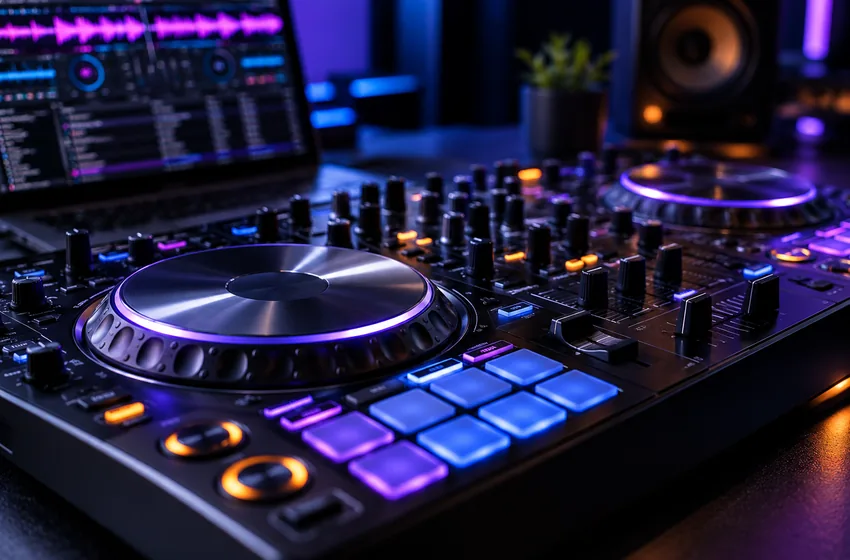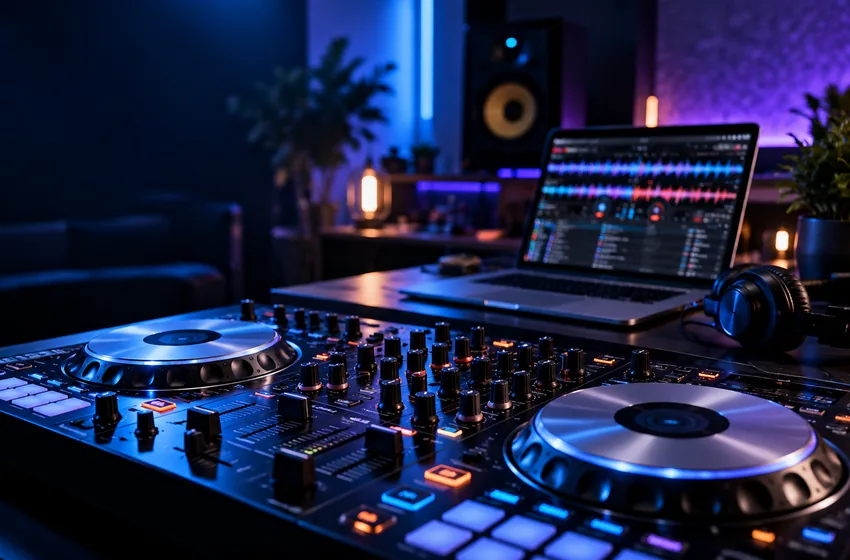
The best controller is the one whose outputs and controls make your intended work repeatable—not necessarily the one with the most buttons.
How should I choose a DJ controller for a VirtualDJ workflow?
Prioritize confirmed compatibility, enough outputs for speakers and cue headphones, and the physical controls you will actually use. Check manufacturer and VirtualDJ guidance for your exact controller model, drivers and licensing conditions before committing to a setup.
For device-specific settings, follow the source links below and check the current software manual.
Menus and licensing can change between VirtualDJ releases. Use these steps as a learning framework and verify device-specific instructions in the official documentation.
01. Start with outputs and headphones
Confirm that your model has the correct audio routing for your speakers and cue headphones. A compact controller might be convenient but still require extra equipment for a particular setup.
Read the model-specific integration manual and check driver compatibility with your Windows version. Not every controller includes the same onboard sound interface.
What to do
- Write down required speaker connections.
- Check whether headphone cueing uses a separate output.
- Confirm official compatibility or documented mapping options.
Do not buy based on a generic “works with DJ software” claim.
02. Match layout to your work
For beginners, clear transport buttons, pitch controls, channel faders, EQ and headphone cue are a good starting point. Performance pads, effects sections and multiple layers matter more after the basics become automatic.
Think about space, cable routing, travel cases and power arrangements. A comfortable layout reduces mistakes during long sessions.
What to do
- Test the feel of the channel faders.
- Check the legibility of labels in dim light.
- List the controls you actually use in rehearsals.
A simple layout with a reliable audio interface often beats a crowded feature list.
03. Factor licensing into the decision
VirtualDJ licensing varies by personal or professional use and by controller type. Some hardware workflows need a paid license; current terms are published by the vendor.
Do not assume that free home use without equipment automatically covers use with a controller or paid performances.
What to do
- Read the current licensing options.
- Confirm the exact controller model and supported mode.
- Budget for cables, headphones and any required software license.
DJ Mix Guide does not sell controllers, software or licenses.
Three practical checks
Use these observable checkpoints before relying on this workflow. These are editorial practice suggestions, not results of independent device testing.
| Check | What good looks like | If it does not work |
|---|---|---|
| Compatibility | Find the exact model in current VirtualDJ or manufacturer documentation | Do not assume a similarly named controller behaves identically |
| Cue routing | Locate documented independent headphone and master outputs | Plan a supported audio-interface arrangement |
| License | Verify the license required for the exact hardware and intended use | Review the current official license terms before purchase |
Frequently asked questions
Does every controller work identically with VirtualDJ?
No. Mapping, built-in sound cards, operating-system drivers and available features vary by model.
Is the controller with the most controls the best choice?
Not necessarily. Predictable layout, suitable connections and easy cueing are often more useful than a large button count.
Sources and further reading
This guide offers independent practice advice. Product specifications and available controls should be checked against the software publisher's documentation.
Send corrections or suggestions to our editorial inbox.